Free Downloads
20 film simulation
LUTs for Lumix.
Fujifilm, Kodak, cinema, and original signature grades — built and tested on the Lumix S5IIX and S9. Free to download, free to use — drop them into Lumix Lab or any .cube-compatible editor.
Download full pack (.zip)Lumix Lab users: Select Like709 photo style before applying these LUTs in Lumix Lab for best results. These are optimized for the Lumix sensor's warm/red bias. For all LUTs, I set Noise to LOW, Color Noise to OFF and both Sharpness and Noise Reduction set to -1.
Fujifilm
11 LUTs
 BeforeAfter
Provia / Standard
A faithful recreation of Fujifilm's workhorse film simulation. Balanced, natural tones with slightly boosted contrast and saturation — versatile across every shooting situation from landscapes to street.
 BeforeAfter
Astia / Soft
Soft, flattering skin tones with gentle contrast and subdued saturation. Originally designed for portrait and fashion work — beautiful on people, animals, and anything with warm organic texture.
 BeforeAfter
Velvia
Fujifilm's legendary landscape film — vivid, punchy, and highly saturated. Deep blues, vivid greens, and rich reds with strong contrast and near-black shadows. Built for scenes that deserve to pop.
 BeforeAfter
Classic Chrome
Understated color with pulled-back saturation and firm midtone contrast — the look that made Fuji famous with street and documentary shooters. Reads more like reportage than a snapshot.
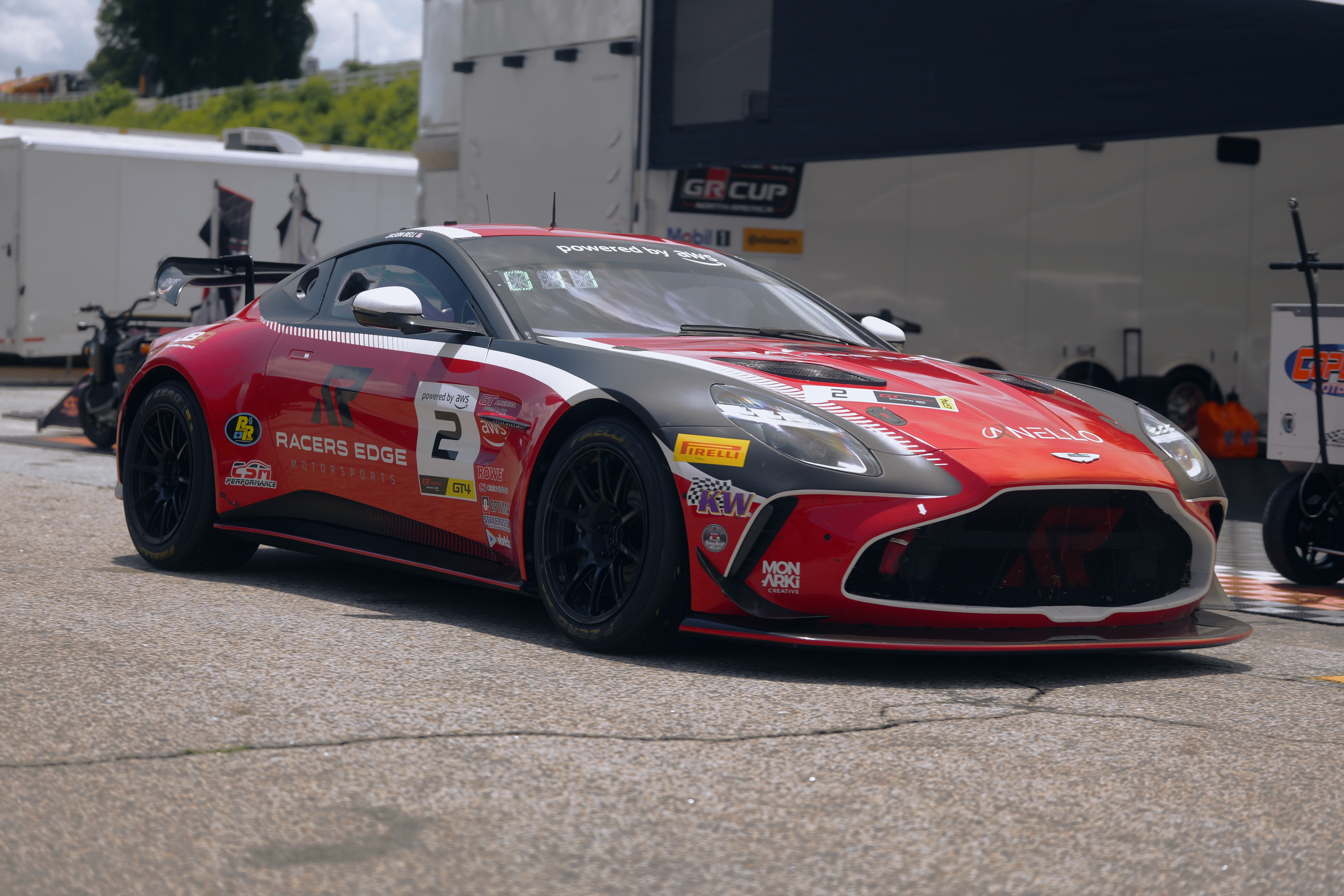 BeforeAfter
Classic Chrome Warm
The Classic Chrome formula shifted warmer — same restrained, documentary contrast but with an amber lift through the mids. Excellent for golden-hour motorsport and warm-toned editorial work.
 BeforeAfter
Classic Neg
A grittier, negative-film character with teal-leaning shadows and warm highlight separation. Built for candid, off-the-cuff shooting — snapshots, street corners, everyday urban texture.
 BeforeAfter
ProNeg Hi
A professional-portrait negative simulation with firmer contrast than its Std counterpart. Skin holds detail and dimension under stronger light — built for studio setups and editorial portrait work.
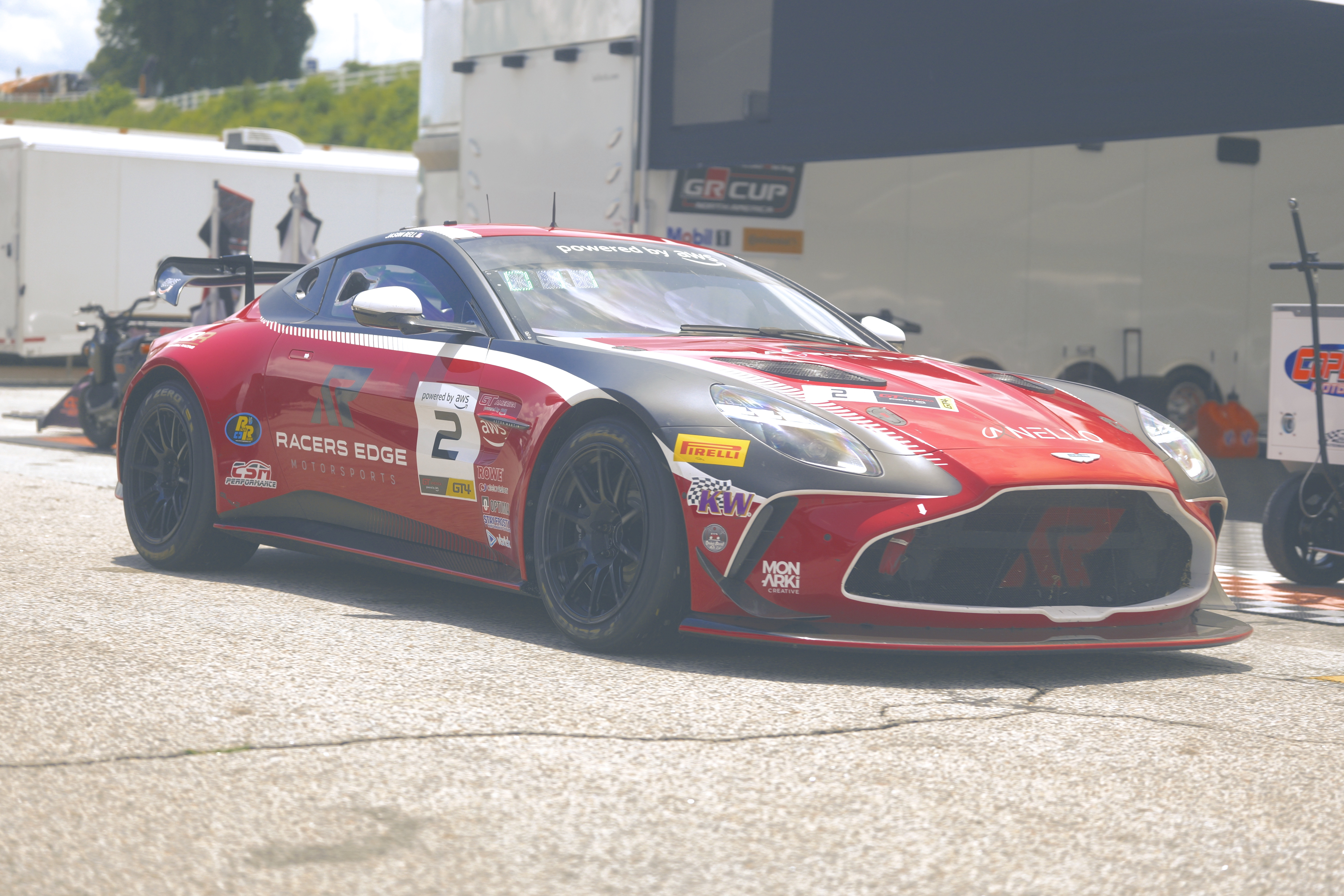 BeforeAfter
ProNeg Std
A softer-contrast portrait negative look built for even, forgiving light. Gentle roll-off and natural skin rendering make it a dependable everyday portrait and lifestyle simulation.
 BeforeAfter
Nostalgic Neg
A warm, slightly faded vintage-negative character with lifted blacks and an amber cast through the shadows. Built for travel journals and documentary work that wants to feel like an old print.
 BeforeAfter
Reala Ace
Fujifilm's newest simulation, tuned for accurate color with a touch more punch than Provia. A modern, do-anything look for reportage, product, and general-purpose shooting.
 BeforeAfter
Eterna Cinema
Fujifilm's cinematic simulation with subdued shadows, desaturated highlights, and a subtle film-like rolloff. Designed to look like it was shot on motion picture stock — particularly effective for moody landscape and documentary work.
Kodak
3 LUTs BeforeAfter
Portra 400
The gold standard portrait film. Warm, creamy tones with flattering pinkish skin rendering, lifted shadows, and an incredibly smooth highlight rolloff. The most universally flattering LUT in the pack.
 BeforeAfter
Kodak Gold 200
Warm golden tones with a distinctly nostalgic character. Strong orange-warm bias across the frame — greens go golden, blues go warm, skin glows. The film that defined the look of summer snapshots.
 BeforeAfter
Ektar 100
Kodak's most vibrant color-negative stock, known for punchy reds and saturated, fine-grain detail. Built for bright daylight, architecture, and landscapes that want serious color without the Velvia-level drama.
Cinema
3 LUTs BeforeAfter
CineStill 800T
Cinematic, tungsten-balanced tones engineered for high-speed action under stadium lights or overcast skies. Deep blues and cool asphalt teals dominate the frame, punctuated by a dramatic red-orange halation glow across headlights and reflections. The definitive look for gritty night racing.
 BeforeAfter
Cinematic Movie
A broad, filmic grade built around teal-leaning shadows and warm highlights — the classic modern-cinema color split. Works as an all-purpose hero-shot look for video and stills alike.
 BeforeAfter
Dark Mood
A low-key, moody grade with crushed shadows and restrained color. Built for night scenes, silhouettes, and any subject that benefits from drama over accuracy.
Signature
3 LUTs BeforeAfter
Classic Le Mans
An original grade built for endurance racing — deep teal shadows and warm amber highlights inspired by dusk stints at Le Mans. Engineered on the S5IIX and S9 specifically for track photography.
 BeforeAfter
Forest Rally
A cool, green-forward grade with earthy shadow tones, built for rally stages and woodland motorsport where the trees do as much work as the cars. Also strong on general forest and landscape work.
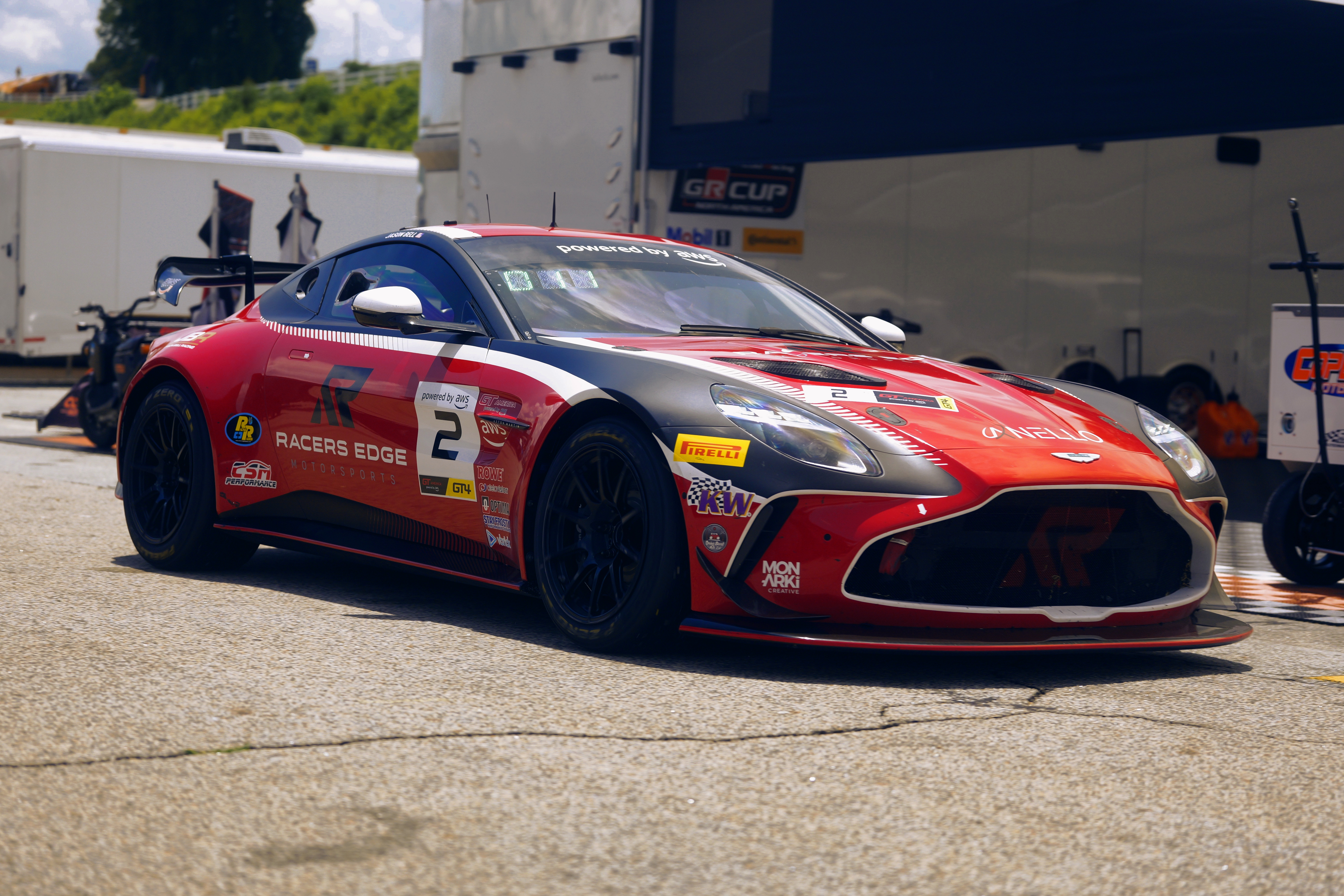 BeforeAfter
Rich Tones
A deep, saturated original grade with punch across every channel — richer than Provia, more controlled than Velvia. A go-to when a scene needs extra color weight without tipping into caricature.
All 20, same scene.
Scroll to compare →Every LUT in the pack applied to the same base frame, shot in-camera with no LUT applied for reference. Scroll horizontally to compare side by side, or click any frame to view it full-size. You can also compare up to 4 images, click the '+' at the top left of the image to add it to your comparison grid.
How to install
your LUTs.
Download the .cube file
Click Download on any LUT above, or grab the whole pack as a single .zip from the button at the top of the page. Save the files somewhere you can find them — a dedicated LUTs folder is recommended.
Lumix Lab (in-camera)
On your Lumix S5IIX or S9, open Lumix Lab. Select Like709 photo style first, then navigate to LUT import and select your .cube file via USB or SD card.
Lightroom / Resolve / Premiere
In Lightroom Classic: Develop → Color Grading → Creative → import LUT. In DaVinci Resolve or Premiere: add a LUT node/effect and browse to your .cube file.
Lumix Lab · Adobe Lightroom Classic · DaVinci Resolve · Adobe Premiere Pro · Final Cut Pro · Capture One · Affinity Photo
Built and tested on Lumix S5IIX and Lumix S9. Should work on any camera shooting in a neutral/flat profile, though results may vary across sensors.
The Lumix sensor has a warm/red bias. These LUTs account for that. For best results, select Like709 photo style in Lumix Lab before applying.
Free for personal and commercial use. No credit required but always appreciated. Do not redistribute or resell as your own.